“My phone says storage is full, and I don’t even know what’s taking up the space.” I hear this in almost every class I teach at the library. The good news: you can usually free up storage on your phone, often several gigabytes, in about 10 minutes. You don’t have to buy anything or install a “cleaner” app. Let’s take it one step at a time.
First, a quick word on what “storage” means. It’s the space on your phone where photos, apps, videos, and messages live, a bit like the shelves in a closet. When the shelves are full, your phone can’t take new photos or install updates. Clearing space just means taking a few things off the shelves.
What usually takes up the most space
| What it is | Why it’s big | What to do |
|---|---|---|
| Photos and videos | Every picture and video you take stays on the phone | Back them up, then remove the copies on the phone |
| Apps you don’t use | Some apps are very large, and they get bigger over time | Delete them or offload them |
| Message attachments | Photos, videos, and GIFs people send you pile up | Review large attachments and delete what you don’t need |
| Downloaded videos and music | Movies and shows saved to watch offline | Delete what you’ve already watched |
| Cache and junk files | Temporary files that apps save to load faster | Clear them (the steps are below) |
How to free up storage on iPhone
Step 1: See what’s using your space
- Open Settings.
- Tap General.
- Tap iPhone Storage.
You’ll see a colored bar and a list of your apps, from biggest to smallest. Apple’s page on checking the storage on your iPhone explains this screen. Below the bar, your iPhone may show Recommendations. Tap Show to see all of them. They’re a good place to start.
Step 2: Offload apps you don’t use
“Offloading” removes the app but keeps its documents and data. If you open the app later, it downloads again and your stuff is still there. It’s gentler than deleting.
- In iPhone Storage, tap an app you rarely use.
- Tap Offload App.
You can also have your iPhone do this for you. Go to Settings, tap Apps, tap App Store, and turn on Offload Unused Apps. On older versions of iOS, App Store is right in Settings. Offloaded apps keep their icon on your Home Screen with a small cloud next to the name.
Step 3: Move photos to iCloud
If you have iCloud Photos turned on, you can keep small versions on your phone and the full-size ones in iCloud. Go to Settings, tap your name, tap iCloud, tap Photos, and choose Optimize iPhone Storage.
Keep in mind that iCloud space and phone space are two different things. iCloud storage is free up to 5 GB, and Apple charges a monthly fee for more. If you want to see what’s using your iCloud space, Apple explains how in its guide to managing your iCloud storage.
Step 4: Clear message attachments
- In iPhone Storage, tap Messages.
- Tap Review Large Attachments, or look at Photos and Videos.
- Swipe left on anything you don’t need and tap Delete.
Step 5: Empty “Recently Deleted”
When you delete a photo, it isn’t gone right away. It sits in a folder for 30 days. Open Photos, tap Albums, scroll down to Recently Deleted, tap Select, and then Delete All. Only do this once you’re sure you don’t need those photos back.
Apple’s guide to managing storage on iPhone covers more options if you want to go further.
How to free up storage on Android
Menu names vary a little between Samsung, Google Pixel, and other brands. If you get stuck, use the search box at the top of Settings and type “storage.”
Step 1: See what’s using your space
- Open Settings.
- Tap Storage.
- Tap a category, such as Images or Apps, to see what’s inside.
Google explains this on its page about freeing up storage on your Android device.
Step 2: Use Free up space
In Storage, tap Free up space if you see it. Your phone lists photos, videos, and apps you haven’t used lately. Tap Select files for a category, choose what to remove, and tap Move files to Trash.
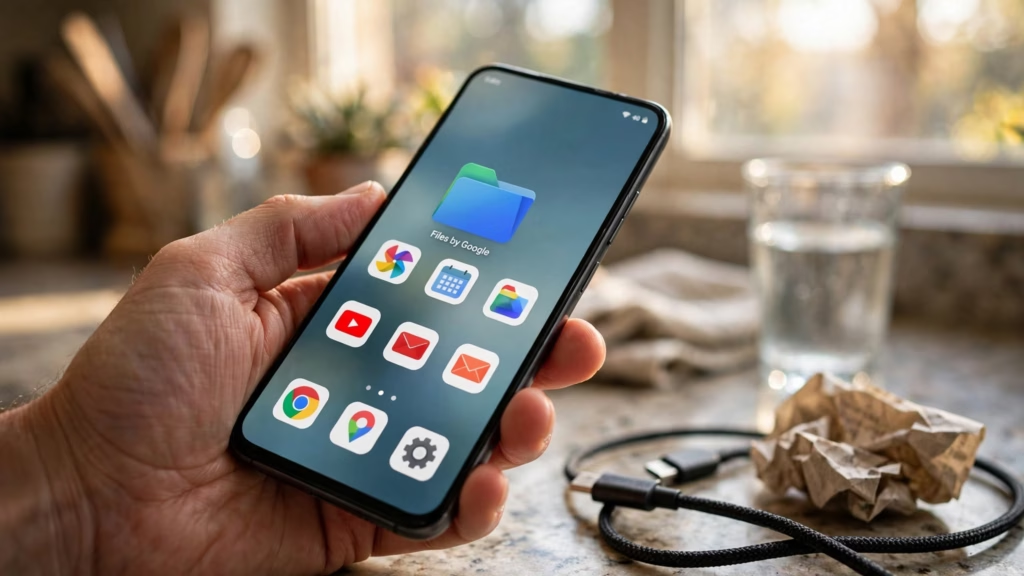
Step 3: Clear junk files with Files by Google
Files by Google is a free app made by Google, and it’s already on many phones. If you don’t have it, search for it on Google Play and check that the developer is Google LLC.
- Open Files.
- Tap Clean.
- On the Junk files card, tap the clean button.
Google notes on its junk files help page that clearing junk files is permanent. Junk files are mostly temporary files that apps save, and removing them doesn’t change your app settings. The same Clean screen also has cards for Delete large files and Delete unused apps.
Step 4: Remove photos that are already backed up
If you use Google Photos, you can delete the copies on your phone once they’re safely backed up. Open Google Photos, tap your profile picture, and choose Free up space on this device. Google explains the steps on its free up space help page. Photos and videos less than 30 days old may stay on your phone.
Step 5: Clear an app’s cache
Cache is the temporary files an app saves so it can load faster. Clearing it is safe, and the app rebuilds it later.
- Go to Settings, then Apps.
- Tap the app that’s using lots of space.
- Tap Storage, then Clear cache.
Do you need a cleaner app?
No. Everything above is built into your phone, and it’s free. Many “cleaner” and “booster” apps promise miracles and then charge a subscription. Your phone’s own tools are the safest place to start.
Keep your storage from filling up again
- Back up your photos regularly, then clear old ones from the phone
- Delete downloaded movies and shows once you’ve watched them
- Check your largest apps every few months
- Turn off automatic downloads of videos in messaging apps
For more simple guides like this one, browse our phone tips and our guides for seniors.
Frequently asked questions
Why does my phone say storage is full when I have few photos?
Apps, messages, downloaded videos, and cache add up fast. Check the storage screen in Settings to see which category is the largest.
Will deleting an app delete my photos?
No. Photos live in your Photos or Gallery app. Deleting another app doesn’t remove them, though it can remove that app’s own data, so offload first on iPhone if you’re unsure.
Does buying more iCloud storage fix a full iPhone?
Not by itself. iCloud storage and your phone’s storage are separate. Extra iCloud space can hold your backups and full-size photos, though, which lets you remove them from the phone.
Is it safe to clear the cache?
Yes. Clearing cache only removes temporary files. The app will make new ones the next time you use it.
You did it
Start with one step today: open your storage screen, find the biggest category, and clear one thing. Try it now while the steps are fresh. That’s it — you did it.